




Dear Encryption Suite Pro Users,
We thought it would be convenient to post some information on one of the major features of Encryption Suite Pro, creating and mounting a secure drive.
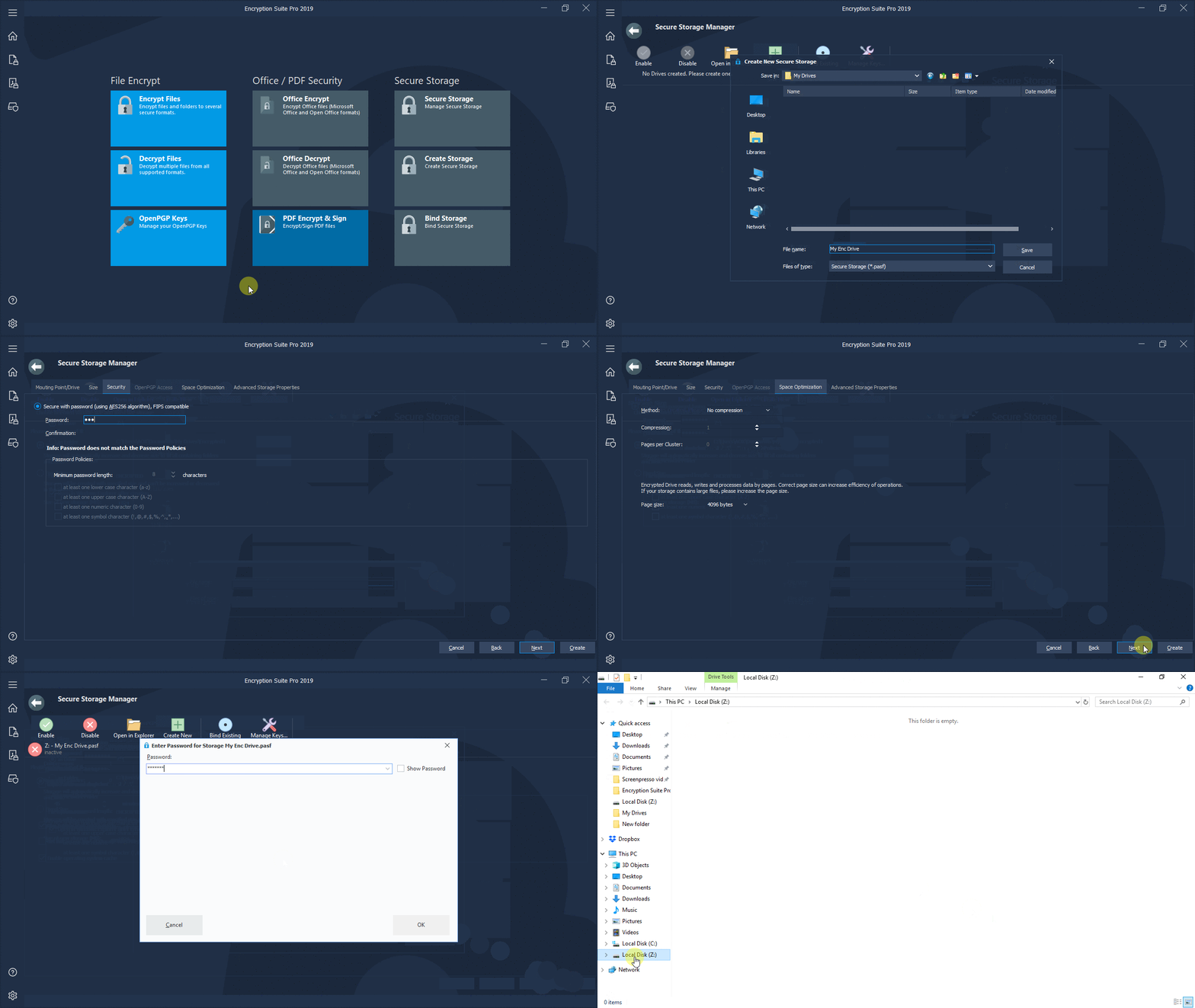
Here is a quick visual tutorial on creating a new Secure Drive through the Secure Storage Manager and below it, a textual explanation as well. You can click on the image to get to the full sized version:
Tutorial:
- To create a new Secure Drive please start Encryption Suite Pro, click the Secure Storage button on the right side and the Secure Storage manager will appear.
- Click on Create New and the Create New Storage Wizard will begin.
- Enter name of your storage file and select a location where you would like that file to be saved. Click Save.
- Go to the Security tab which allows you to choose whether to encrypt your Secure Storage with a password. Password policies are listed below the password entrance fields and the entered password will need to fulfill the set policies in order to be accepted.
- Once you have chosen the above mentioned settings, click on Create and your Secure Drive will be created.
- Once storage file is created, you will be able to see it in Storage Manager list as well as the system try helper app. You can simply select it on the list and click on Enable to mount it in Windows.
- When your Secure Drive is mounted, it will appear in Windows Explorer as a regular drive and can be used as such. Windows Explorer should open with your secure drive, and keep in mind that usually it is a Z: drive.
All files that you save to your secure encrypted drive are automatically encrypted during usage. You do not have to do anything else to encrypt these files, it is all done transparently and immediately while you are using your drive. When you stop using your drive, you can disable it in Secure Manager or through system tray helper app.
Please send us your questions about Encryption Suite Pro, the easiest way to securely encrypt your files. It also comes with a very detailed help file and tutorial. Check out our Encryption Suite Pro pages for more info.